


Most people blame slow browsing on their internet plan. They call their provider, complain, maybe upgrade. What they rarely check is something far simpler, buried one layer deeper in their network settings, that takes about 10 seconds to change and costs nothing at all.
That something is your DNS server. It’s not a setting most people ever think about, yet it quietly determines how fast every single website you visit starts loading. Getting it right can make a surprisingly noticeable difference.
What DNS Actually Does (And Why You Should Care)

The Domain Name System is essentially a phone book for the internet, a framework that translates domain names like facebook.com or twitter.com into the IP addresses necessary for devices to load those internet resources. Every time you type a web address, that lookup happens before your browser can connect to anything at all.
Sometimes a slow-opening page isn’t caused by your internet speed at all. It’s simply the time it takes for your DNS to respond. Every time you type a domain name into your browser, your device asks a DNS server to translate it into an IP address.
Slow DNS resolution directly impacts what developers call “Time-to-First-Byte,” essentially how long it takes before your browser starts receiving any data from the server. This delay occurs before any other website optimization techniques can take effect, making DNS performance a fundamental building block of website speed optimization.
The ISP Default Problem
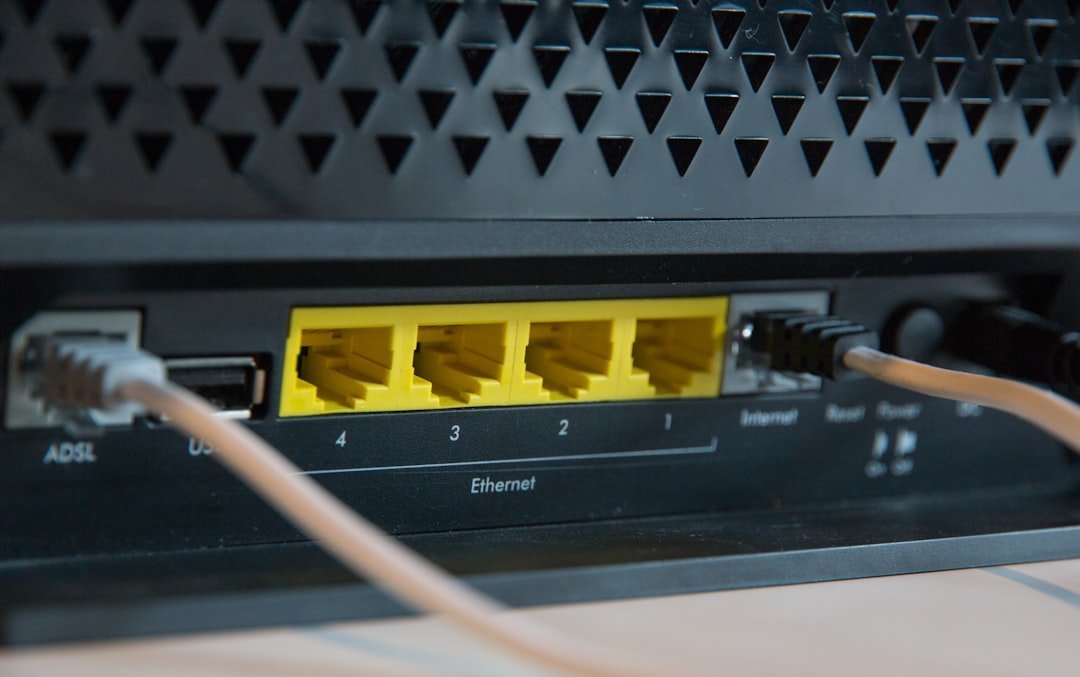
You’re automatically assigned a DNS server by your ISP every time you go online, but it may not always be the best choice. If your ISP’s DNS is slow, that will cut your browsing speeds, and if it goes down, you may be unable to access some or maybe all of the web.
ISP-provided DNS services are assigned automatically when you connect to the internet. Typically, they’re slower than other types of DNS services due to their reliance on a large number of users accessing them, and they usually lack advanced security features.
Your ISP assigns DNS servers automatically when you connect. These default DNS servers are often slow, sometimes unreliable, and may log every website you visit. That last part is worth sitting with for a moment, because it’s not just a speed issue.
How Big Is the Speed Gap, Really?
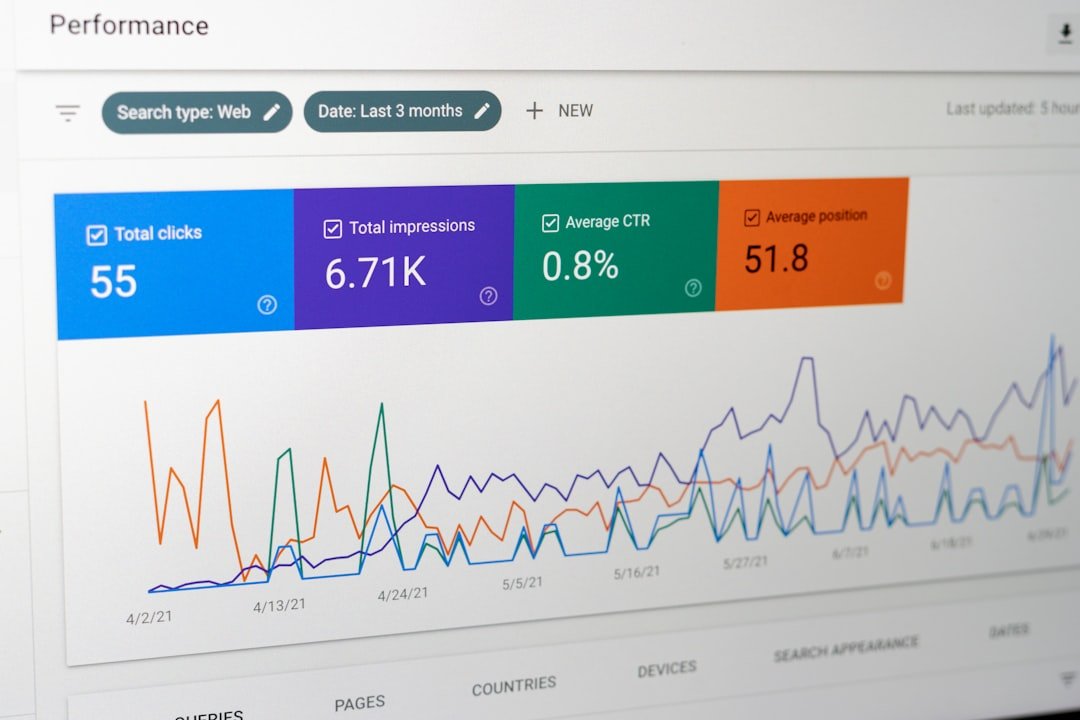
DNS servers significantly improve browsing speed by reducing lookup times from 100 to 300ms typical for an ISP to 10 to 20ms for the best public DNS. That gap is measurable and real, not theoretical.
Independent testing by DNSPerf shows response time variations from 10 milliseconds to over 100 milliseconds between different DNS providers. These might seem like tiny differences, but they compound across hundreds of daily DNS queries. Users report noticeable improvements in perceived browsing speed when switching from slow ISP DNS to optimized public DNS services.
Faster resolution makes websites load 40 to 70 percent quicker and eliminates delays when accessing new domains. The effect is most apparent on the first visit to a site you haven’t been to before, where no cached result exists yet.
Cloudflare 1.1.1.1: The Current Speed Leader
Cloudflare DNS (1.1.1.1) is fastest globally with an average speed of 10.36 ms, ideal for gaming, streaming, and general browsing, thanks to its vast infrastructure with over 330 cities worldwide.
Based on the results of the 2024 DNSPerf Global DNS speed test, Cloudflare has been rated as the top DNS provider worldwide based on average query response times in all regions. That’s a consistent finding, not a one-off result.
Cloudflare commits that it will never write the querying IP address to disk. Any logs that do exist will be deleted within 24 hours. Cloudflare has retained KPMG to audit its practices annually and produce a public report to confirm the company is delivering on its promises. Speed and accountability, combined.
Google Public DNS: The Reliable Runner-Up

Google Public DNS, reachable through 8.8.8.8 and 8.8.4.4, currently boasts a global average query speed of 19.16 ms as of late 2025. While it doesn’t quite match Cloudflare in terms of sheer speed, it has made impressive progress, improving from 33 ms in 2017 to its current performance.
Google leverages anycast routing alongside a two-level caching system to direct queries to the closest data centre, reducing latency. This approach helps deliver consistent performance with minimal variations in response times.
In 2025, Google Public DNS earned recognition as the Most Reliable provider in the UK, offering ping times of 10 to 15 ms for gaming. Reliability matters just as much as raw speed, especially if you’re streaming or on a video call.
Quad9: When Security Matters More Than Raw Speed

Quad9, accessible via 9.9.9.9, holds the third spot among global DNS providers with an impressive average query time of 22 ms. What makes it stand out is its dual focus on speed and security.
While its global average query time is 22 ms, it shines in regional performance. In Europe, it averages 4.35 ms, outpacing Google’s 7.17 ms. Similarly, in North America, it averages 7.21 ms compared to Google’s 8.53 ms. In cities like Frankfurt and New York, response times drop even further to 1.14 ms and 1.50 ms, respectively.
Quad9 stands out for its privacy-first approach, with no IP logging and compliance with Swiss privacy laws. For users who want meaningful threat filtering alongside speed, it’s a serious contender.
The Role of DNS Caching in Perceived Speed

DNS caching eliminates the need to repeatedly look up the same domains, making web pages load instantly on return visits. Your DNS cache serves the requested resource record early in the lookup chain, short-circuiting the entire resolution process.
Cached DNS results in approximately zero milliseconds response time, effectively instant, while uncached DNS typically takes 20 to 100 ms as query time. That’s why the first visit to a new site always feels slightly slower than the second.
TTL, or Time to Live, is the “shelf life” of each record. Within the TTL’s validity period, the recursive resolver can directly return the cached answer to the client, which often contributes more to the perception of speed and stability than we intuitively estimate.
How to Change Your DNS in Under 10 Seconds

On Windows, go to Settings, then Network, then WiFi or Ethernet, then DNS, then Manual, and enter the addresses. Changing DNS on your router applies to every device on your network automatically.
Open a browser and type your router’s IP address into the address bar to open the admin panel. Enter your login credentials. Once logged in, find the DNS settings, typically under sections like WAN, Network Settings, or Internet Settings. Look for fields labeled Primary DNS and Secondary DNS and enter your preferred DNS provider addresses.
Changing DNS at the router level ensures all devices on your network benefit from faster, more secure DNS resolution without individual configuration. The exact steps vary by router manufacturer, but generally involve accessing your router’s admin panel, typically at 192.168.1.1 or 192.168.0.1. Once saved, the change takes effect almost immediately.
Encrypted DNS: The Next Layer of Upgrade

Modern DNS providers offer encrypted query options to protect your browsing from eavesdropping and tampering. The main protocols are DNS over HTTPS (DoH), which sends DNS queries over HTTPS on port 443, hiding requests among normal web traffic, and is supported by Cloudflare, NextDNS, and browsers like Firefox.
Windows 11 natively supports DNS over HTTPS (DoH), which encrypts DNS queries to prevent eavesdropping and manipulation. That means the upgrade path is accessible to most home users without needing third-party tools.
Modern DNS can be encrypted to prevent your ISP or your employer from monitoring your DNS lookups to determine where you go on the internet and which websites you access. It is known that ISPs sell this information about their own customers. Encrypted DNS closes that particular door for good.
How to Find the Best DNS for Your Specific Location
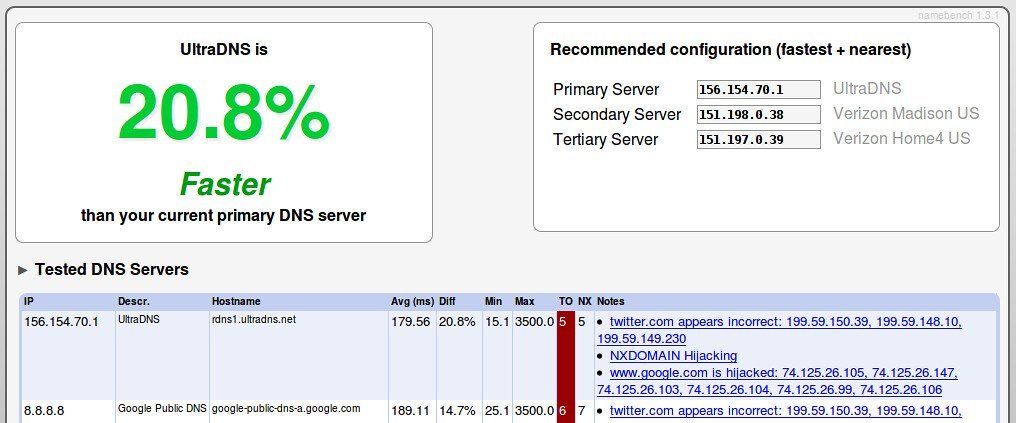
The fastest DNS server depends on your location and ISP, but Cloudflare 1.1.1.1 is often among the fastest public resolvers because of its large anycast network and low latency. Resolver speed is not universal. The fastest DNS for one city, mobile carrier, or ISP may be slower somewhere else. That is why benchmark data matters more than brand recognition.
Download DNS Benchmark for Windows or namebench for Mac and Linux to test DNS servers from your location. Run tests multiple times over several days, as performance varies with network congestion. Compare response times, reliability, and consistency.
Configure primary and secondary DNS servers for redundancy. Your device uses the primary server unless unavailable, then switches to secondary. This setup provides optimal performance and reliability. Setting 1.1.1.1 as primary and 8.8.8.8 as secondary is a commonly recommended starting point.
What DNS Won’t Fix (And What It Will)

Changing DNS can reduce lookup time and improve responsiveness, but it does not increase the maximum bandwidth of your connection. If your plan is genuinely slow, a DNS change won’t help with large file downloads or video bitrate. Be clear-eyed about what the tweak actually addresses.
The impact extends beyond basic web browsing. Video streaming services, online gaming, software updates, and cloud applications all rely heavily on DNS performance. Slow DNS can cause buffering, connection timeouts, and degraded user experiences even on high-speed internet connections.
Switching to a quality free and public DNS server can deliver more responsive browsing, often with a bunch of security benefits thrown in: anti-phishing, blocking of infected websites, and maybe content filtering. Those benefits stack quietly in the background, doing useful work even when you’ve forgotten you made the change.
The whole thing takes about 10 seconds to do and costs nothing. Few other network tweaks offer that kind of ratio between effort and measurable result. Your ISP made the default choice for you. Making your own choice is worth the 10 seconds it takes.