

Your Router Is a Light Bulb – Put It in the Right Room
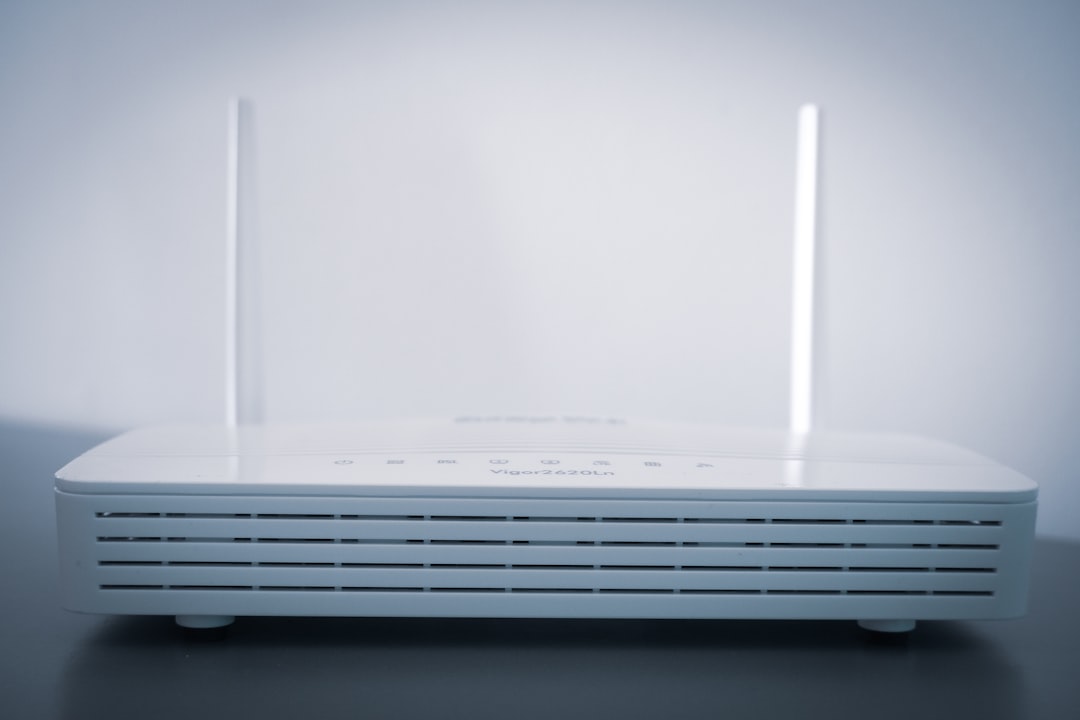
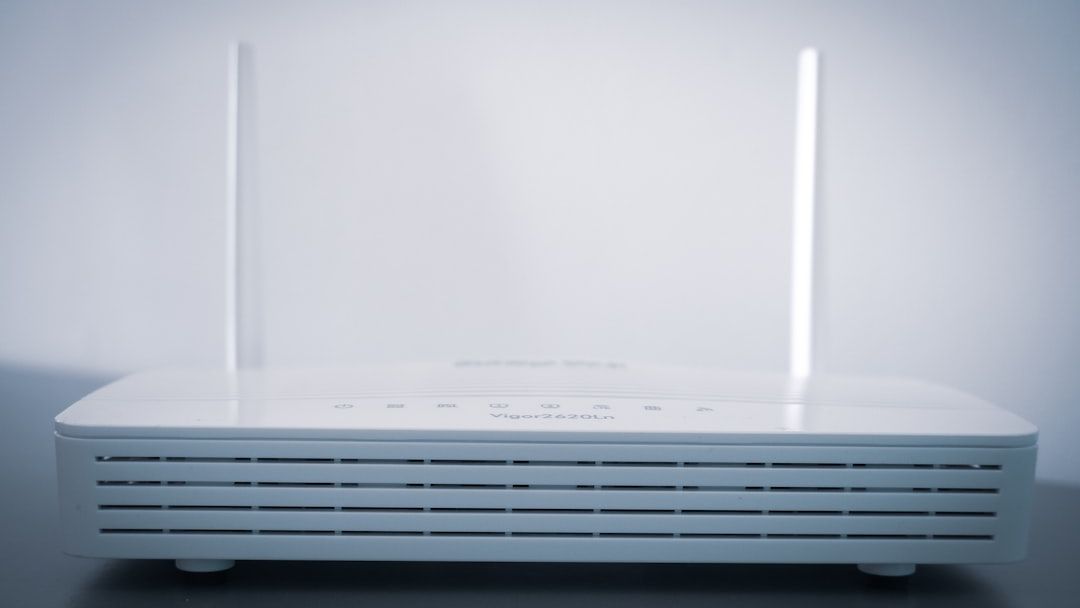
Wi-Fi signals radiate outward from your router in all directions. Placing the router in a corner means a significant portion of your signal is sent outside the house, where nobody benefits. The ideal position is as close to the geographic center of your living space as possible, giving every room roughly equal distance to the router.
The best router location is a central, open, elevated spot so your Wi-Fi can spread more evenly through the home. Aim for a clear line of sight where possible, and keep the router away from interference sources like large electronics.
Simply moving a router from a corner of the house to a central location can improve Wi-Fi coverage by up to 50%. That’s a significant jump for something that costs nothing and takes about ten minutes.
The Inverse-Square Law: Why Distance Hits Harder Than You Think
Signal strength follows the inverse-square law – doubling the distance reduces signal power by 75%. That’s not a gradual fade. That’s a cliff. Moving your router two feet closer to a dead zone can be the difference between a usable connection and none at all.
As distance increases, the wireless signal strength decreases, and different types of obstructions will further reduce signal strength. These two forces compound each other, which is why far corners of a home feel like signal deserts even when the router seems “close enough.”
A reliable signal strength to strive for is at least -67 dBm or higher. For media-hungry households with streaming video, striving for -60 dBm or higher is even better. Anything weaker than that and you’ll notice it.
Walls Are the Real Enemy – Not Your Internet Plan

Solid walls create dramatic drops. A signal that reads -55 dBm on one side of a thick brick or concrete wall can drop to -75 dBm on the other side. The map makes this visible as a sharp color boundary rather than a gradual fade.
Interference caused by building materials is a common, yet often overlooked, contributor to poor Wi-Fi performance. This occurs due to the nature of radio wave propagation and the characteristics of the wireless communication system.
The materials between your router and your devices matter enormously. Concrete and brick walls are notorious for absorbing and deflecting Wi-Fi signals. Metal objects like filing cabinets, appliances, and wire shelving can reflect and scatter wireless signals unpredictably.
Height Matters More Than Most People Realize

A router placed on the floor loses a significant amount of signal into the ground and furniture legs. Ideally, your router should be elevated – on a high shelf, mounted on a wall, or placed on top of a bookcase.
A height of five to seven feet is optimal for most single-story homes. For multi-story homes, the best placement is often on the ceiling of the first floor or floor of the second floor – essentially the middle level of the structure.
Height also plays a role because Wi-Fi signals propagate outward and slightly downward, so a router elevated on a shelf will generally cover more of a room than one sitting on the floor behind a couch. It’s a small change with a measurable effect.
Kitchens and Cabinets Are Signal Graveyards
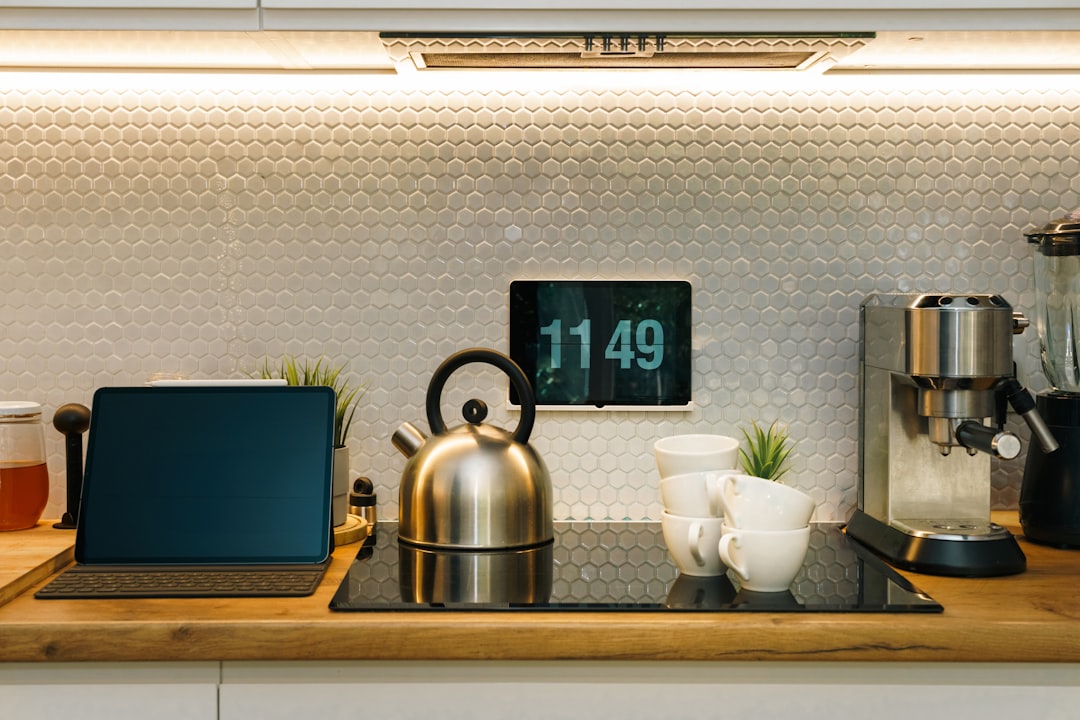
A router positioned near the front door means the further corners of the house get almost no signal. The kitchen, with all its metal appliances and cabinets, is practically a signal graveyard.
Placing your router inside enclosed furniture significantly reduces Wi-Fi performance. Wood, metal mesh, and other materials in cabinets absorb and reflect signals. The enclosed space also traps heat, which can cause the router to throttle performance.
Hiding the router in a closet, cabinet, or cupboard reduces wireless router signal strength. Small spaces can also lead to overheating. Out of sight truly means out of signal range.
The 2.4 GHz vs. 5 GHz Choice Changes Everything by Room
The 5 GHz band delivers faster speeds at close range, making it the better choice for devices in the same room as the router. However, higher frequency signals lose strength more quickly and have more difficulty passing through walls and floors. The 2.4 GHz band travels farther and penetrates obstacles more effectively, making it better for devices at a distance.
Smart home devices, which are often low-bandwidth and spread throughout the home, frequently perform more reliably on 2.4 GHz for exactly this reason. Understanding which band suits which device matters more than just picking the fastest option every time.
Routers have two wireless bands: 2.4 GHz and 5 GHz. The 5 GHz band offers higher speeds but a shorter range. Switching your devices to the 2.4 GHz band sacrifices some speed but can result in stronger signals in dead zones or at the border of your router’s coverage area.
Your Antenna Angle Is a Surprisingly Powerful Variable
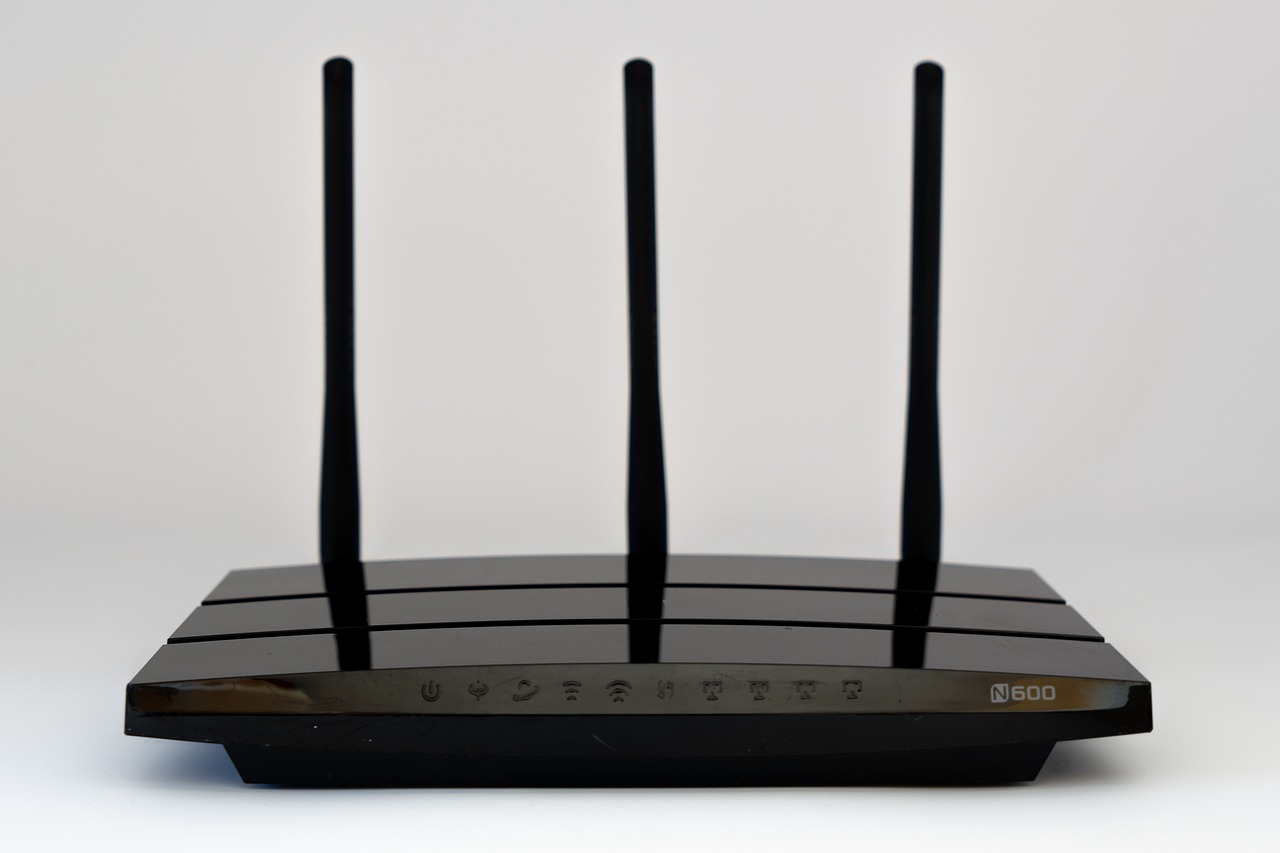
If your router has one or two antennas, try to place them vertically rather than horizontally. For routers with three or four antennas, position the middle antennas vertically and position the outside antennas at an angle for wider coverage.
For same-floor coverage, placing antennas vertically ensures coverage is best on the same level. For multi-story building coverage, placing antennas at 30 degrees diagonally is more effective.
Because antennas transmit weakly at the base, you should not place your wireless client device directly below a wireless router or access point. Most people never think about what’s above or below the router – only what’s in front of it.
Map Your Dead Zones Before You Move Anything

Wi-Fi analysis apps let you see your signal strength in real time as you walk around, which is helpful for figuring out which parts of your house have the weakest signals. Creating a rough floor plan and walking around systematically lets the app plot out where your signal is strong versus weak. This takes barely 15 minutes but gives you a solid understanding of Wi-Fi signals around your house.
The router’s current position is usually not the best one – and this is the most consistently useful finding. Almost every home survey reveals a more central or less obstructed position that would improve coverage at the weakest points without significantly affecting the strongest areas.
Signal mapping turns the guesswork into a visual picture of exactly where your Wi-Fi is strong, where it is weak, and what is causing the drop. It takes about 30 minutes, requires only a smartphone or laptop, and the results tell you more about your network than years of anecdotal experience ever would.
The Demand on Your Router Has Never Been Higher
Research from Parks Associates, drawn from a quarterly survey of 8,000 U.S. internet households, found that the average number of connected devices per U.S. internet household reached 17 in Q3 2023. That number has only grown since.
Around 3.9 billion Wi-Fi devices are expected to ship in 2025, and currently 23.3 billion Wi-Fi devices are in use globally – found everywhere from homes with security cameras and voice assistants to industrial settings. Every one of those devices is putting pressure on your router’s coverage area.
The global Wi-Fi range extender market was valued at around USD 1.39 billion in 2024 and is projected to hit USD 5.99 billion by 2035. That figure tells you something: dead zones are not a niche problem. They’re a near-universal one that the market is scrambling to solve.
When Repositioning Isn’t Enough: Enter Mesh Networks
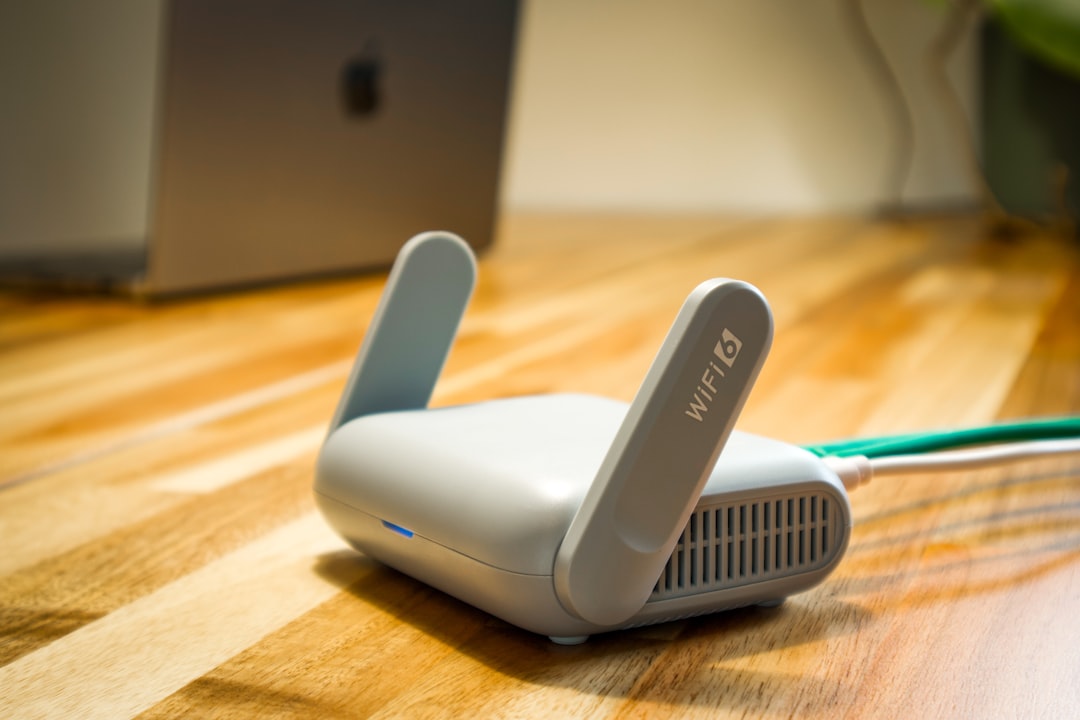
Mesh Wi-Fi systems eliminate dead zones faster than traditional routers because they use multiple nodes that work together to guarantee seamless coverage across large or complex spaces. For homes where the ideal central position still leaves problem areas, this becomes the logical next step.
Dead zones occur when Wi-Fi signals struggle to reach certain areas of your home, often because of obstacles like walls, furniture, or appliances that block or weaken the signal. Interference sources such as microwaves or cordless phones can further disrupt your connection, making dead zones worse.
Mesh networks consist of a main router and several satellite devices that all work together to extend your Wi-Fi network to the furthest corners of your home. They can be a great choice if you have a large home or a lot of connected devices. Repositioning your router is always the free first step – but mesh systems exist precisely for when physics won’t cooperate.
Conclusion: The Smallest Adjustments Have the Biggest Returns
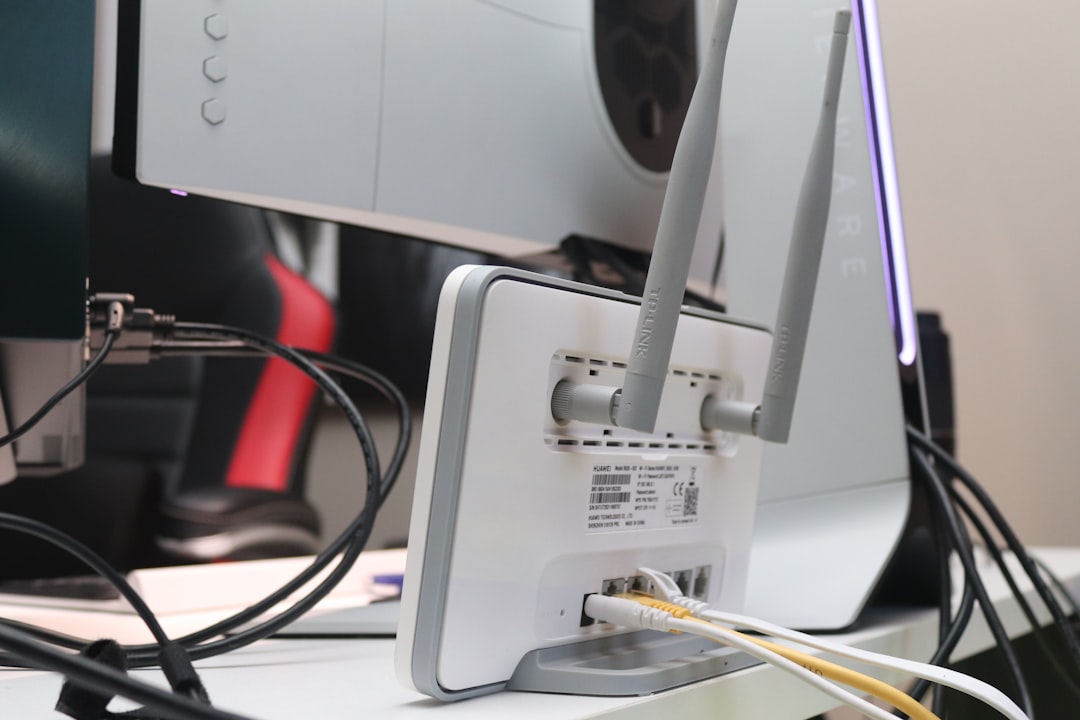
There’s something almost ironic about spending hundreds of dollars on a new router when the old one was just sitting in the wrong spot. The solution for a better internet connection with broader Wi-Fi coverage may be as simple as repositioning your router.
Even the best router will struggle to deliver a strong signal if it is in the wrong position. Central placement, appropriate height, clear sightlines, and the right frequency band for each device – none of these cost anything. They just require a few minutes of attention and a willingness to rethink where that box actually belongs.
Before calling your internet provider, before buying a new router, before subscribing to a faster plan – try moving it. The “router horizon” is simply the edge of your current coverage, and more often than not, it’s a problem of geometry, not hardware.